How do I get an AI to book courts without getting blocked as a robot?
Run it in your real Chrome with Claude in Chrome as a scheduled task, so it uses your existing login. You still sign in yourself. The bot never enters credentials.
What didn’t work in Part 1?
In Defeated by a login page, I tried a headless browser. The public calendar scan worked. Login didn’t. The site flagged the bot as a robot before it could get into the account, which, to be fair, it was.
Why did real Chrome work?
Because the session is already yours. Claude in Chrome runs in the browser where you’re signed in, so there’s no separate headless login to get blocked. I still do the login myself. The scheduled task only starts once that account is already open.
What does the task do?
It’s a booking and cancellation test that needs approval, not a fully hands-off system yet:
- Checks the account and upcoming bookings
- Checks credit, and if it’s low, starts a top-up and sends a payment link to my email without ever entering card details
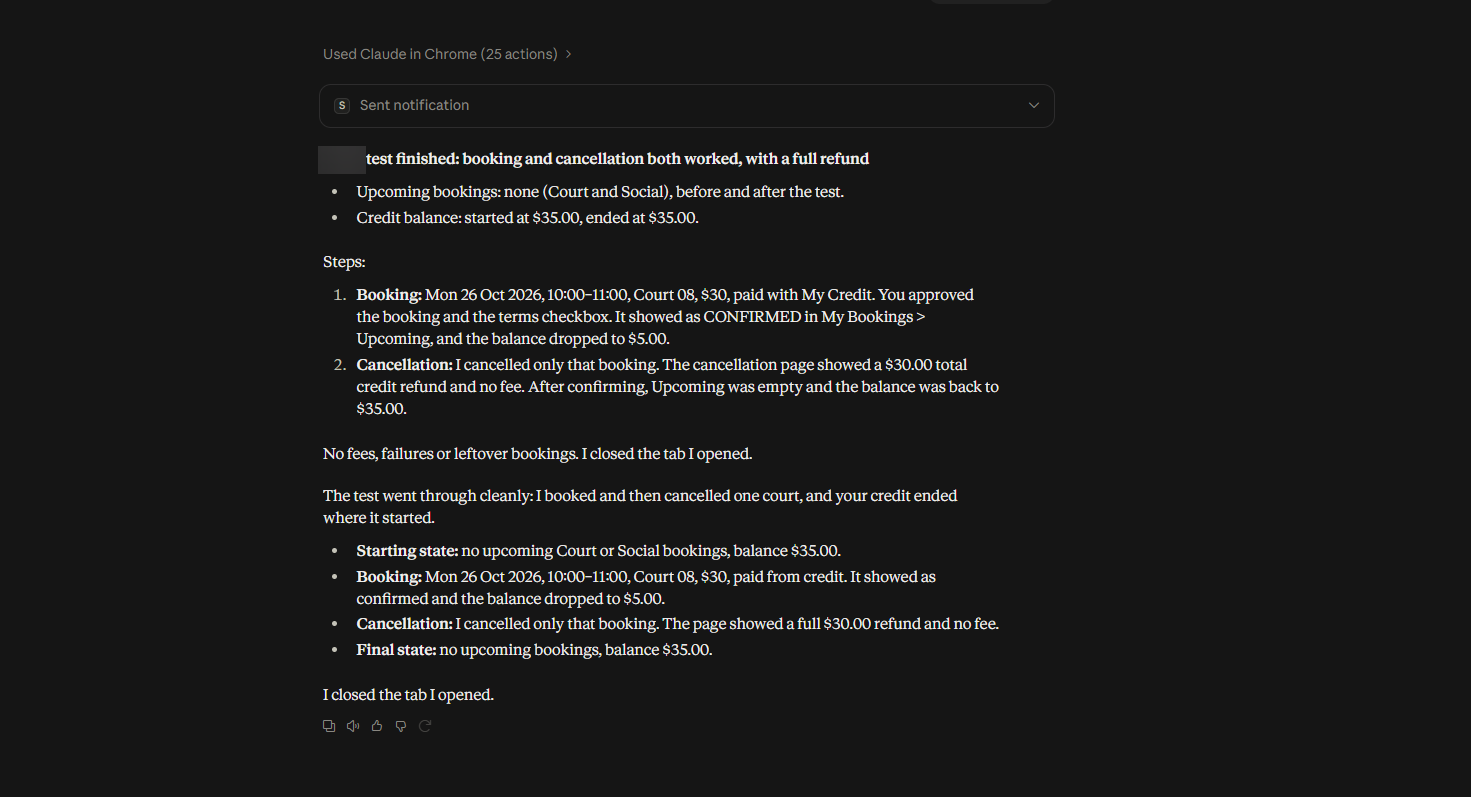
- Otherwise picks the cheapest slot outside the free-cancellation window, asks me to approve, books that one test slot, then cancels it
- Reports back with a push notification
Did it actually work?
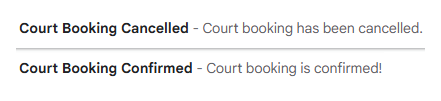
Yes, for that single approved test. It booked one court for Mon 26 Oct 2026, 10:00 to 11:00, for $30 paid from credit. The balance went from $35 to $5. Then it cancelled that booking and got a full $30 credit refund with no fee, so the balance ended back at $35. No fees, failures or leftover bookings. Still one test with me in the loop, not a hands-off system.
What are the safety rails?
Approval before any booking. It never enters passwords or card details. If credit is low, it stops at the payment link. And it only cancels the test booking it just made, not anything that was already there.
What’s next?
Proper booking and cancelling for real, not just a one-slot test. For now this is enough to prove the real-Chrome path gets past the robot wall that stopped Part 1.
FAQ
I’ve downloaded the prompt, how do I set it up?
Install Claude in Chrome and sign in to your booking site in that Chrome. Fill in the placeholders, create a scheduled task in Claude, paste the prompt, pick a schedule, and run it once manually first. Anthropic’s Claude in Chrome get-started guide and scheduled tasks help page cover the install and scheduling steps.
What do I need?
A paid Claude plan (Pro, Max, Team, or Enterprise), Google Chrome, and the Claude in Chrome extension. Anthropic lists those same paid plans for Claude in Chrome and for scheduled tasks, so check their get started and scheduled tasks pages for what’s included on your plan.
Will it book without asking me?
No. It waits for your approval before any booking, and it never enters passwords or card details. You log in yourself in Chrome, and it only cancels the test booking it just made.
Can I use it with a different booking site?
Yes. Fill in the placeholders for your site, or leave them blank and Claude asks for them on the first run.
What happened in Part 1?
A headless browser got flagged as a robot at login, so the assistant never got into the account. The full story is in the earlier post.
If you want a hand finding a similar first automation win for your own admin, have a look at working with me.